...
This guide will help you get up and running on your Logbook Pro Mobile equipped devices. Before you can use your mobile device you must link it to Logbook Pro Desktop. If you don't have Logbook Pro Desktop installed click here to download and install it to Windows at this time. If you're using a Mac refer to this article for assistance.
| Anchor | ||||
|---|---|---|---|---|
|

...
Connect Logbook Pro Desktop to the cloud either from the View / Options / User Info area or in the Cloud Sync / Settings area. Login with your NC Software web site account info which is the same login used on www.nc-software.com. If you don't have a NC Software account you can create one on the right side of this web pageby clicking here.
Panel borderWidth 0 
Once you have signed in and connected Logbook Pro Desktop to the cloud on the toolbar find the Cloud Sync button and click Cloud Sync / Sync Now.
Panel borderWidth 0 
- Logbook Pro Desktop is now connected to the cloud.
...
If you haven't done so already, download Logbook Pro Mobile to your device from Google Play (also available on Amazon.com and Barnes & Noble).

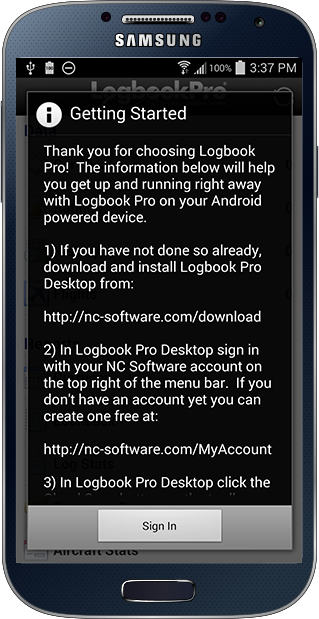
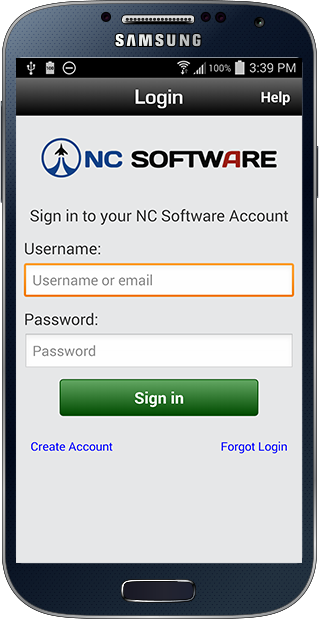
When you first run Logbook Pro on your Android powered device you will be greeted with the end user license agreement (EULA) and then once accepted you will see a setup guide appear. You must first sign in to your NC Software account using the same account as used in Logbook Pro Desktop (above). The app will then automatically sync with the cloud and pull down your Logbook Pro configuration information and reports generated by the PC. You are now ready to start using Logbook Pro on your Android devices.
...